|
|
PRINTER SETTING FOR LIFE ORGANIZER
If the image on your card is not correctly aligned when printed do the following:
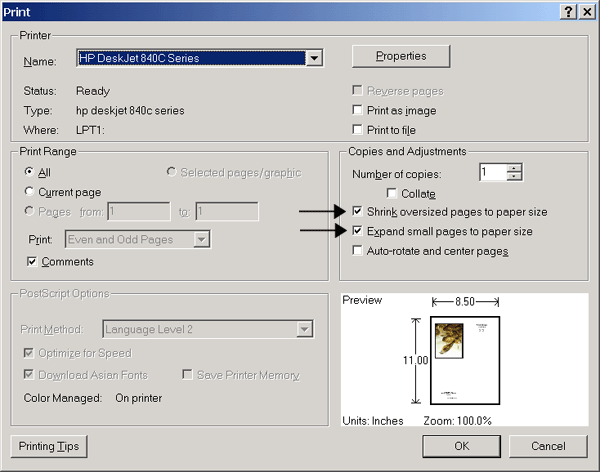
If you are using Acrobat Reader 5.0, select Shrink Oversized Pages to Paper Size and then click OK.
In the figure directly below you will find an example of the correct printer setting for Life Organizer using Acrobat Reader 5.0. Notice that there is a checkmark in the box for "Shrink oversized pages to paper size" (clicking inside the boxes selects and deselects the options).
|
|
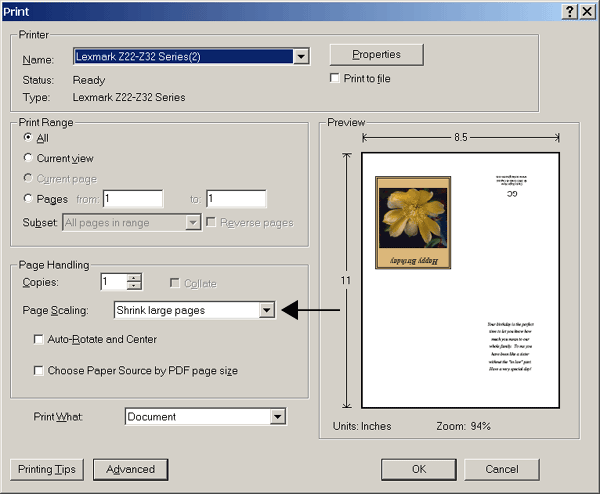
If you are using Acrobat Reader 6.0, choose Shrink Large Pages in the Page Scaling menu and then click OK.
In the figure directly below you will find an example of the correct printer setting for Life Organizer using Acrobat Reader 6.0. Notice that "Shrink large pages" has been selected.
|
|
Note: If you are currently using Acrobat Reader 5.0 there is no need to switch to 6.0. In fact, many people prefer Acrobat Reader 5.0.